User Guide
Installation guide
- Install Node.js from https://nodejs.org.
- Download the repo here.
- Unzip the folder, and open the terminal inside the unzipped
architecture-tracer-mainfolder. - Run these two commands one at a time:
npm install npm run dev - Open the app site in your browser. (It should be in the pattern of http://localhost:XXXX/app/)
App components
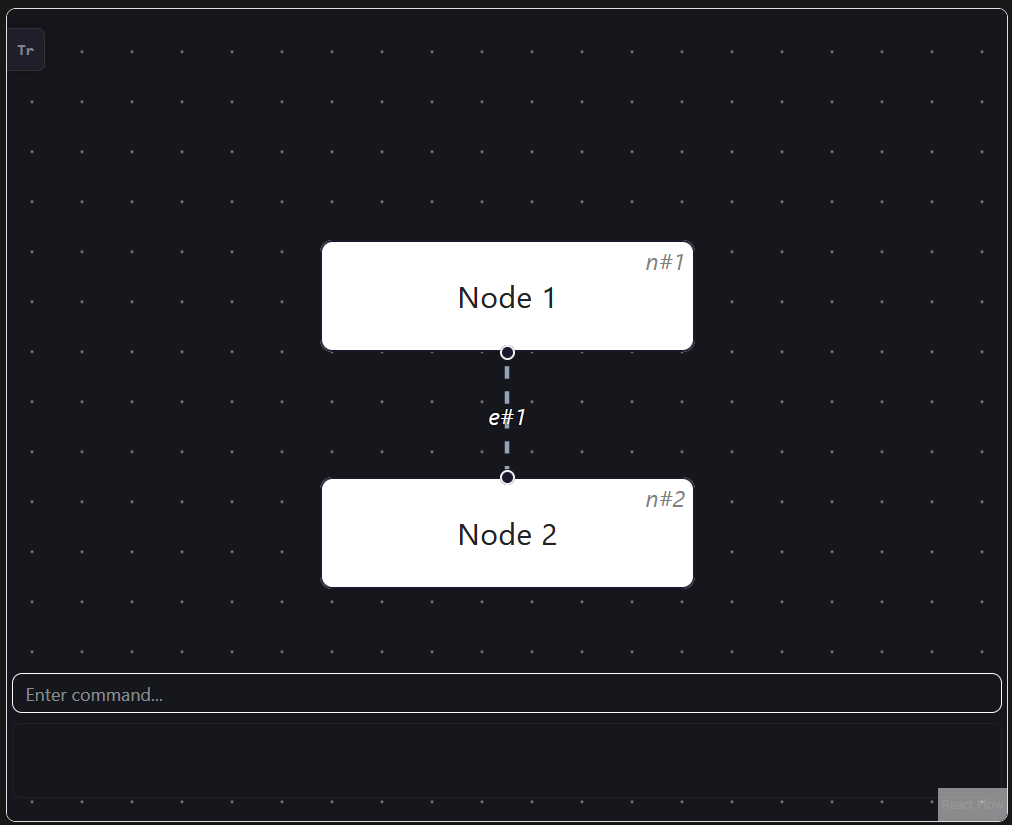
- Nodes: Nodes will be indicated by white rectangular boxes, with their id on the top right corner. This may reference this id for commands involving nodes.
- Edges: Edges will be indicated by white dashed lines, with their id overlayed on top. This may reference this id for commands involving edges.
- Command box: The command box is always on the bottom of the app, and can be typed into to execute commands.
- Response box: The response box below the command box will provide responses relevant to the last input command. The box and text will turn red to indicate errors.
- Sidebar: The sidebar can be opened by clicking the “Tr” button on the top left. Opening it will display the simulation trace.
Commands
Adding a new edge: add n/
Adds a new node with the given label.
Format: add n/LABEL
Example:
add n/Internet: Creates a new node labelled “Internet”.
Adding a new edge: add e/
Adds a new edge connecting two nodes.
Format: add e/n#ID n#ID
Example:
add e/n#1 n#3: Connects the nodes with id 1 and 3 together.
Deleting a node or edge: delete
Delete a node or an edge using its id.
Format: delete n#ID or delete e#ID
Example:
del n#1: Deletes the node with id 1.del e#3: Deletes the edge with id 3.
Begin/Continue a simulation trace: trace
If there is currently an ongoing simulation trace, progress to a given node if it is accessible. Else begins a simulation trace on the given node. During a simulation trace, the user may not add/delete nodes and edges to the architecture.
Format: trace n#ID
Example:
trace n#3when a simulation trace is currently not in progress: Begin a simulation trace on the node with ID 3.trace n#3when a simulation trace is in progress, and the node with ID 3 is accessible to the current node: Progress to the node with ID 3.trace n#3when a simulation trace is in progress, however the node with ID 3 is currently inaccessible to the current node: An error message will be displayed as this is not a valid command under the current circumstances.
End the current simulation trace: trace end
Ends the current simulation trace, if any, allowing the user to begin a new simulation trace on a separate node.
Shift steps in the simulation trace: trace prev/trace next
trace prev will shift the trace to the previous step, while `trace next will shift the trace to the next step, if any are available.